
Black Myth: Wukong Compatibility Mode Explained
Black Myth: Wukong compatibility mode offers a crucial solution for players facing crashes, ensuring smoother gameplay on demanding PCs.
If Black Myth: Wukong keeps crashing before you even reach the main menu, you’re definitely not alone. Game Science’s Unreal Engine 5 action RPG looks incredible, but that visual ambition comes with a heavy rendering load: Nanite geometry, Lumen global illumination, and virtual shadow maps all hitting your system at once. On PC, that can mean a black screen, an instant crash, or even a strange error popup instead of the opening you were hoping for. That’s exactly where understanding what Black Myth: Wukong compatibility mode actually does becomes useful, because for a lot of players, it’s the fastest way to get the game to boot at all.
What Is Black Myth: Wukong Compatibility Mode
At a basic level, Black Myth: Wukong compatibility mode is a built-in safe-boot graphics fallback. When the game’s normal rendering pipeline fails to initialize properly—whether because of a driver issue, unsupported features, or unstable UE5 render behavior—the launcher switches to a much more conservative setup. It’s basically the PC equivalent of starting something in Safe Mode: not ideal for visuals, but often enough to get you in.
What this mode really does is cut out or heavily restrict the features most likely to cause startup instability. Ray tracing is usually one of the first things to go, followed by frame generation options like DLSS Frame Generation or AMD FSR interpolation. Upscaling can also drop back to a simpler TAA or TSR-style fallback instead of full DLSS or FSR 4. The point here isn’t image quality. It’s getting past the black screen and into a playable session.
That behavior also changed a bit during the 2026 patch cycle, especially after Patch 1.0.20.21756 and the updates that followed. The newer version of compatibility mode includes automatic instability detection during shader compilation and the early rendering handshake. If the game notices repeated launch failures, it can prompt you to use compatibility mode—or apply it automatically on the next startup—so you don’t get stuck in an endless crash loop.
Black Myth: Wukong Compatibility Mode Effects
Turning on compatibility mode comes with real tradeoffs, so it’s worth knowing what you’re giving up. The biggest hit is to ray tracing. RT shadows, RT reflections, and any path-traced options are disabled outright, which is a noticeable downgrade if you were planning to run a high-end RTX setup with all the visual bells and whistles.
Frame generation is also taken off the table, and that can matter a lot more than it sounds. If your system was relying on DLSS Frame Generation or AMD’s interpolation to stay above 60 FPS, losing that feature can make the game feel much less smooth right away. AMD FSR 4, especially after the 2026 updates, may automatically fall back to a simpler upscaling path or shut off entirely when compatibility mode is active.
There’s another side effect players sometimes overlook: mods and overlays. ReShade, HWiNFO overlays, and some mod frameworks hook directly into the DirectX pipeline, and that can create conflicts during launch. Compatibility mode doesn’t magically fix those conflicts, but by reducing how many advanced render systems are active, it lowers the number of places where those hooks can break initialization. So yes, it can help—but the FPS and image-quality cost is very real. In most cases, you should treat it as a temporary troubleshooting tool, not your permanent graphics preset.
When To Use Black Myth: Wukong Compatibility Mode
This mode isn’t something you should leave on by default just because it exists. Still, there are a few situations where it’s clearly the right move.
The most obvious one is a black screen before the main menu. If the game launches, maybe plays a bit of audio, and then either freezes on black or crashes out, that usually points to a rendering initialization failure. That’s pretty much the exact problem compatibility mode is meant to handle.
Another common case is the Chinese-language error popup some players have reported right after launch, especially on non-localized Windows installs. In practice, that usually means the UE5 rendering backend failed to establish a proper graphics context. It looks confusing, but the underlying issue is often the same: the game can’t start its normal render path cleanly.
Post-patch shader crashes are another strong reason to use it. After a major update, the game often has to rebuild its shader cache, and that process can be rough on systems with limited VRAM, unstable overclocks, or aggressive driver tweaks. By reducing the active feature set, compatibility mode lowers the shader compilation burden and can let the cache finish building without crashing.
Laptop players, especially those on hybrid-GPU systems, probably have the biggest reason to care. When integrated graphics and a dedicated NVIDIA or AMD GPU both sit in the display chain, Unreal Engine 5 can sometimes pick the wrong adapter or fail during device initialization. On those machines, compatibility mode is often the difference between a clean launch and no launch at all.
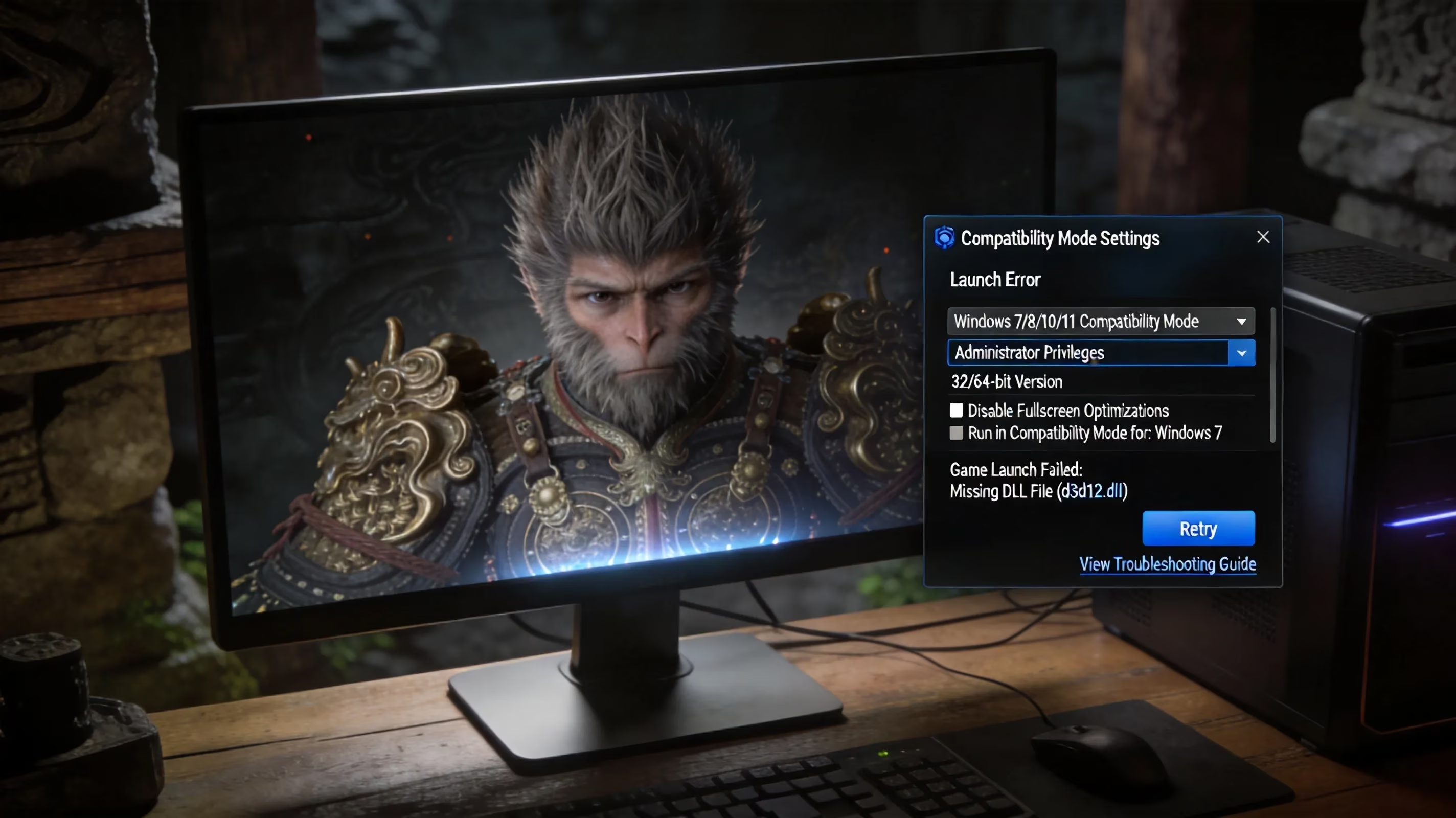
How To Enable Compatibility Mode In Black Myth: Wukong
There are two main ways to enable compatibility mode, and which one you use depends on whether the game can still reach its launcher prompt.
If the launcher appears, the easiest method is the startup prompt. After a crash or failed boot, the game may show a dialog asking whether you want to launch in compatible mode. If you accept, it applies the fallback settings for that session automatically. If you’re launching through Steam and want to force it manually, you can also use Steam launch options by right-clicking Black Myth: Wukong in your library, opening Properties, and entering the proper command-line argument in the Launch Options field.
Before you do either of those, verify your game files first. Seriously—this step matters. Corrupted shader files or a bad patch install can look almost identical to a hardware or driver issue, so checking file integrity through Steam helps rule that out immediately. After that, it’s smart to do a clean boot test by disabling unnecessary startup apps and background services through Task Manager or MSConfig. That way, you’re not troubleshooting graphics settings while some random software conflict is still active in the background.
PC Stability Checklist
If you’re trying to pin down the actual cause, work through these in order:
-
Remove all mods and ReShade files from the game folder before testing compatibility mode
-
Disable both the Steam overlay and Discord overlay, since each can hook into DirectX and interfere with UE5 startup
-
Reinstall your GPU driver cleanly with DDU (Display Driver Uninstaller) in Safe Mode, then install the latest stable driver
-
Delete the existing shader cache so the game rebuilds it from scratch on the next launch
Black Myth: Wukong Compatibility Mode Fixes By Hardware
Different hardware families tend to fail in different ways, and that pattern can tell you a lot about whether compatibility mode is likely to help.
| GPU Family | Common Crash Pattern | Compatibility Mode Relevance |
|---|---|---|
| NVIDIA RTX 30 Series (Ampere) | DLSS Frame Generation initialization failures; black screen on launch | High — FG unsupported natively; disable in launcher |
| NVIDIA RTX 40 Series (Ada Lovelace) | Crashes with DLSS 4 + ray tracing combined; post-patch shader recompile failures | Medium — usually fixed by driver update or shader cache wipe |
| AMD RX 6000 / 7000 Series | FSR 4 edge-case instability on hybrid display outputs; screen flickering during GI load | Medium — updated compatible mode auto-disables FSR 4 in many cases |
| Intel Arc | XeSS initialization conflicts on systems with Intel integrated + Arc discrete | High — hybrid GPU path often needs compatibility mode or manual GPU selection |
| Laptop / Hybrid GPU (any vendor) | Engine selects the wrong display adapter; black screen or device lost error | Very High — often the most reliable launch workaround |
RTX 30 series cards have one especially awkward issue. They support DLSS Super Resolution, but DLSS 3 Frame Generation is tied to Ada Lovelace hardware, not Ampere. If something in your setup tries to initialize frame generation on an RTX 30 card, the render backend can fail during startup. Compatibility mode gets around that by skipping the FG path entirely.
AMD users have their own edge cases. FSR 4, added during the 2026 patch cycle, improved a lot here because it can now fall back to FSR 3 or disable itself when instability is detected. That means some AMD systems no longer need compatibility mode as often as before, though hybrid display setups can still be finicky.
CPU and VRAM limits matter too, even if they’re less obvious. Systems with under 8 GB of VRAM can crash during shader compilation simply because the full feature set pushes memory usage too high while the cache is being built. Compatibility mode lowers that ceiling, which can make a successful first launch much more realistic on constrained hardware.
Recommended Fallback Settings
Once you’ve used compatibility mode to get into the game, the best move is to restore settings gradually instead of leaving everything in fallback mode forever. For most mid-range systems, this is a solid place to start:
-
Shadows: Medium — Virtual Shadow Maps at Very High or Cinematic eat a huge amount of GPU power. Medium usually gives back around 10% to 17% FPS without a massive visual hit.
-
Global Illumination: High — Lumen still looks strong here, especially in temples and outdoor areas. In motion, High and Cinematic are closer than you might expect.
-
Reflections: Medium — Good enough for water, wet surfaces, and polished stone without the heavy VRAM cost of Ultra.
-
Upscaling: DLSS Quality (NVIDIA) or FSR Quality (AMD) — This game is clearly built around upscaling. Native resolution is hard to justify unless you’re on something like an RTX 4090.
-
Frame Generation: Enable only if stable — Great for exploration and traversal, but some players prefer it off during boss fights to keep input latency lower.
-
V-Sync: Off — If you have G-Sync or FreeSync, use that instead. A frame cap just under your monitor refresh rate—141 on a 144 Hz display, for example—usually feels better.
-
Display Mode: Fullscreen Exclusive — This can reduce micro-stutter by giving the GPU more direct control over the display pipeline instead of going through Windows compositing
Black Myth: Wukong Compatibility Mode FAQ
Is compatibility mode safe to use?
Yes. It’s a first-party feature built into the game’s launch system by Game Science. It won’t damage your save data, corrupt files, or alter the installation in any risky way. It’s just a graphics fallback.
Does compatibility mode lower graphics quality?
Yes, and pretty noticeably in some setups. Ray tracing, frame generation, and advanced upscaling options are reduced or disabled, so lighting quality, motion smoothness, and overall image clarity can all take a hit.
Should you keep compatibility mode enabled all the time?
Usually, no. Once you figure out the real issue—driver conflict, bad shader cache, mod problem, hybrid-GPU confusion, whatever it is—you should turn compatibility mode off and restore your preferred settings manually. Leaving it on long-term means giving up features your PC may actually run just fine.
Does compatibility mode matter on PS5 or Xbox?
Not in the same way. The compatibility mode discussed here is a PC-only feature tied to Windows rendering initialization. Console versions handle stability through platform-specific graphics modes instead. The PS5 did get its own 2026 performance-mode update, including a legacy performance option and a revised 60 Hz-capped mode with better resolution, but that’s separate from the PC compatibility mode system.
Conclusion
Black Myth: Wukong compatibility mode is basically a safety net for a game that asks a lot from modern PC hardware. It exists to get you past launch crashes, black screens, shader compilation failures, and hybrid-GPU weirdness by stripping back unstable features like ray tracing, frame generation, and advanced upscaling. If you’re stuck before the main menu, this is one of the first things you should try—but not the last. Use it to get stable, work through the checklist, fix the root cause, and then bring your settings back up step by step. In a game this demanding, stability comes first. Without that, the Destined One doesn’t even get out of the gate.